> For the complete documentation index, see [llms.txt](https://intuitem.gitbook.io/ciso-assistant/llms.txt). Markdown versions of documentation pages are available by appending `.md` to page URLs; this page is available as [Markdown](https://intuitem.gitbook.io/ciso-assistant/configuration/sso/saml.md).
# SAML
{% hint style="danger" %} Please note: if OIDC mode has ben configured before, you must **reset the Client ID field to**** ****`0`**** ****in the OIDC tab and save** before proceeding.
Failure to do so will prevent proper SAML configuration. This behavior is known and will be addressed in future releases.
{% endhint %}
{% tabs %}
{% tab title="General configuration" %}
### Configure CISO Assistant with SAML
Once you've retrieved the **IdP Entity ID,** the **Metadata URL** and the **Entity ID** from your provider (see the list of providers for specific details), the configuration on CISO Assistant is pretty simple.
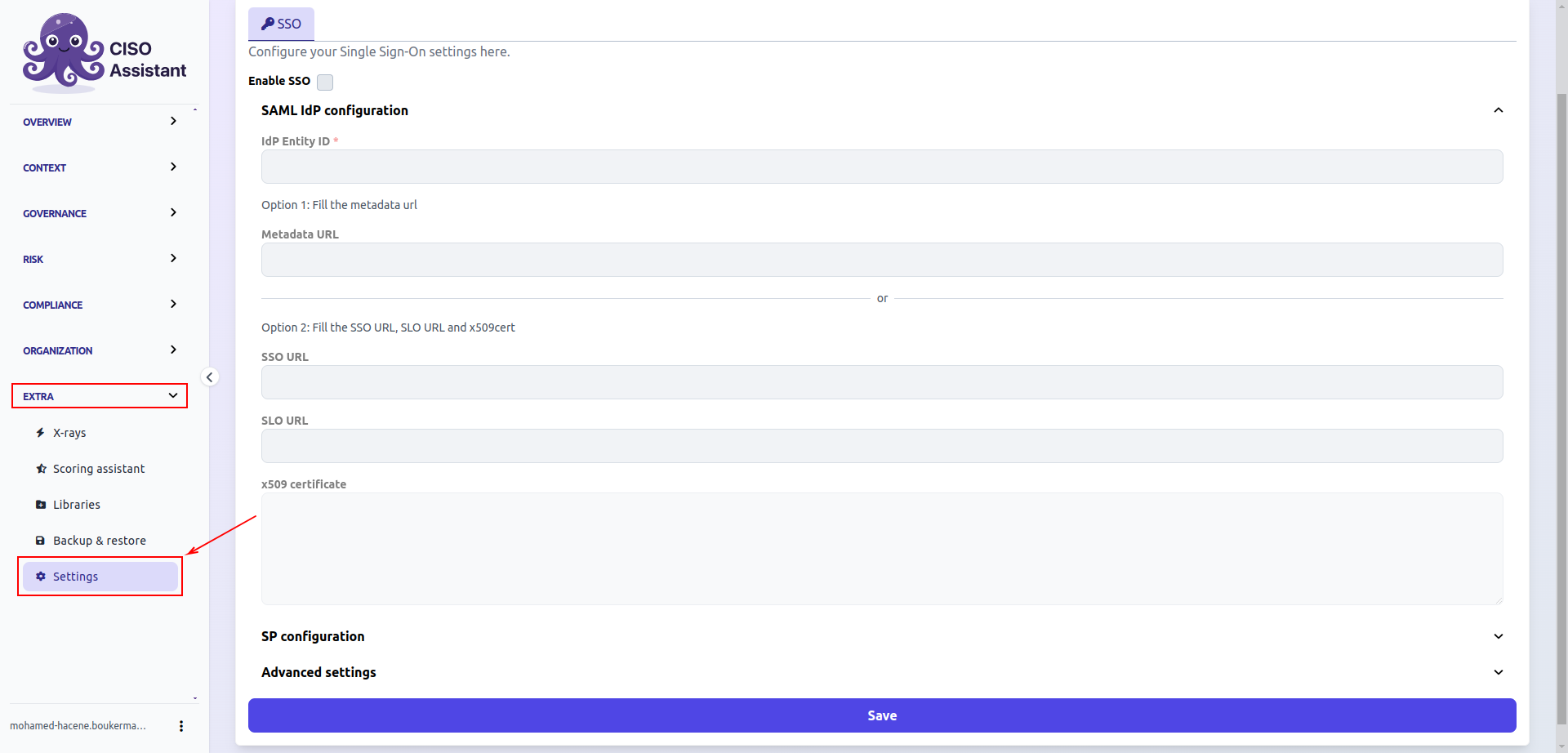
1. Log in into CISO Assistant as an **administrator > Extra > Settings**
2. **Enable SSO**
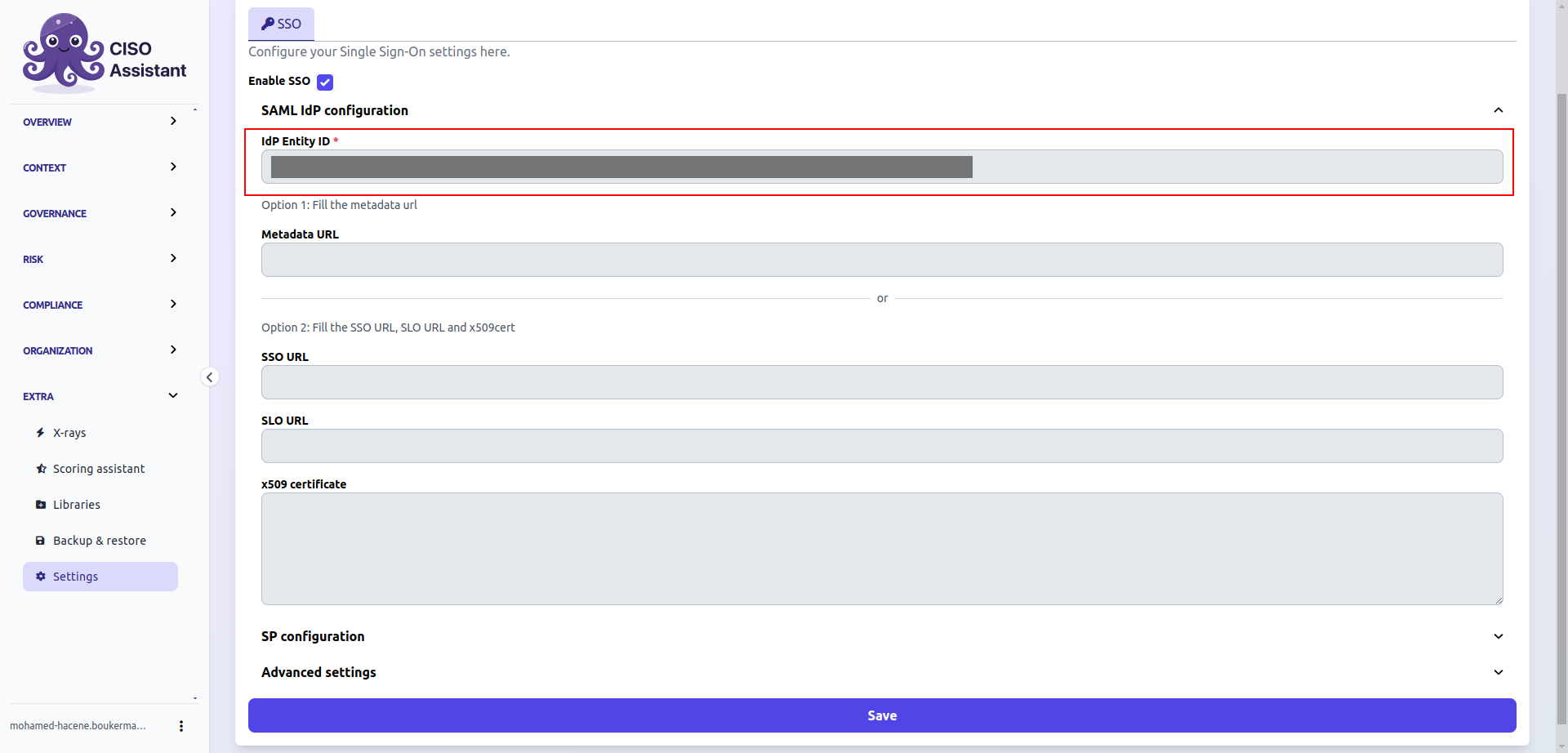
3. Enter the **Idp Entity ID**
4. Choose the option 1 or 2 depending of your provider and fill **Metadata URL** or **SSO URL**, **SLO URL**, **x509 certificate** retrieved from your provider
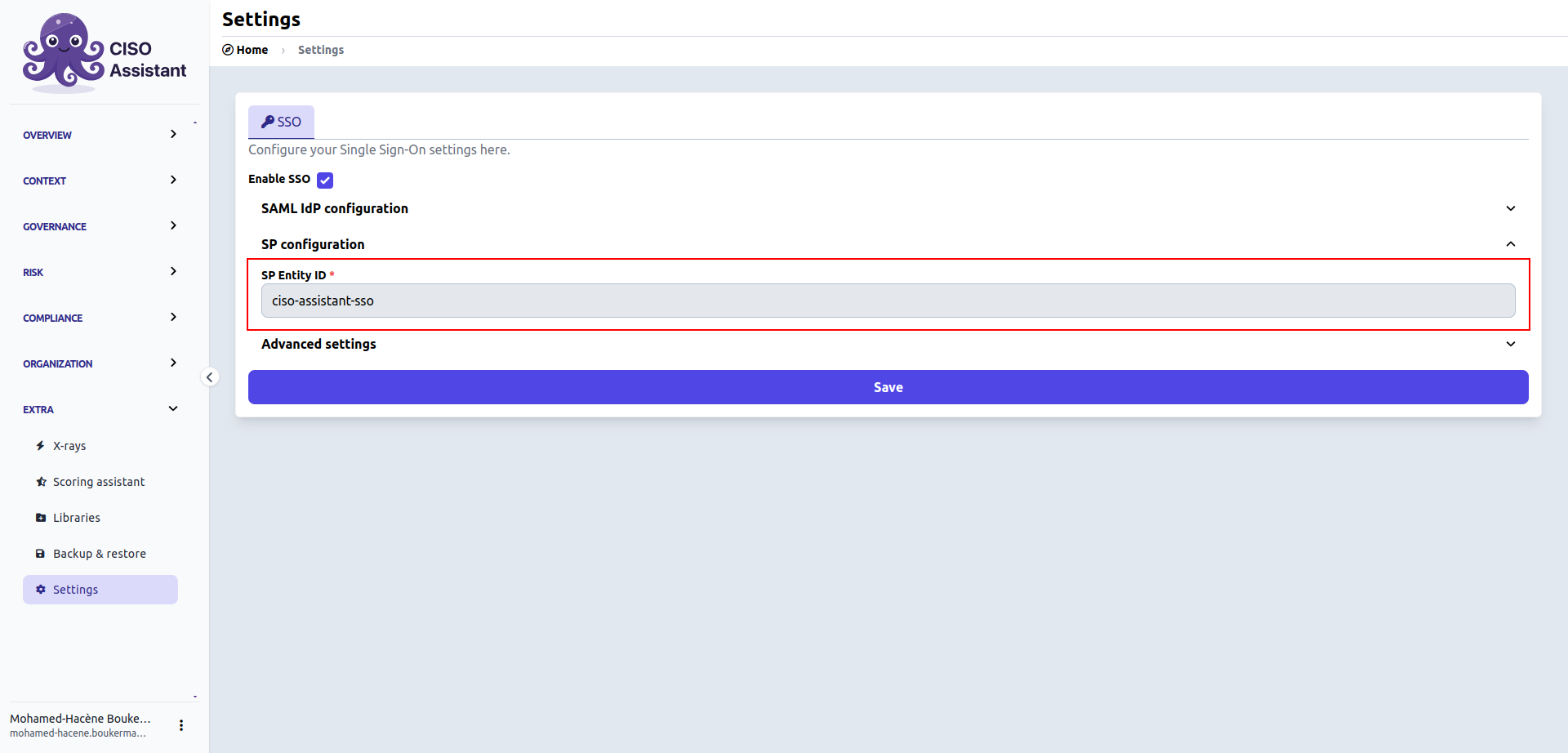
5. Check that the **SP Entity ID** is similar to the **Entity/Client ID** specified on your provider
6. And that's it! Don't forget to save changes
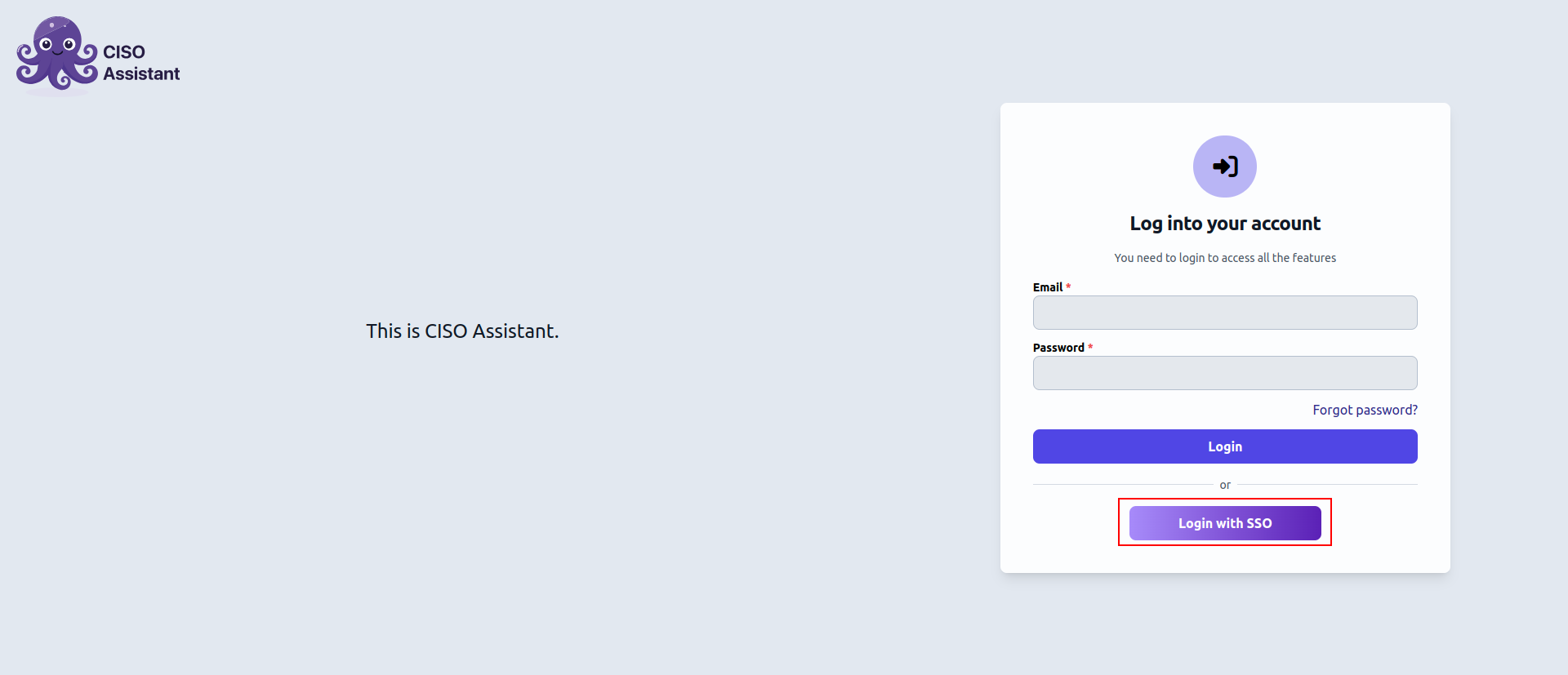
7. You should now be able to see the **Login with SSO** button
{% endtab %}
{% tab title="Advanced settings" %}
* **Allow single label domains**: This allows you to authenticate through SAML on a single-label domain (e.g. `https://ciso-assistant:8443`). If this is left unchecked, the only host forms allowed are:
* IPv4
* IPv6
* FQDN (e.g. )
* `localhost`
* **Authn request signed**: allows the Service Provider (SP) to digitally sign the SAML authentication request sent to the Identity Provider (IdP).
This option should be enabled if your IdP requires signed authentication requests or if you are looking to enforce additional security on SAML authentication flows:
{% endtab %}
{% endtabs %}
### Single Logout
Turn on **Enable service provider-initiated single logout** in the SSO settings to close the SAML session at the identity provider when users log out of CISO Assistant (see [Single Logout](/ciso-assistant/configuration/sso.md#single-logout) for the general behavior).
It also needs the identity provider's Single Logout Service URL. When you configure the identity provider by **Metadata URL**, this is read automatically from the metadata — the **SLO URL** field is only used when you configure the identity provider manually.
Some identity providers require signed logout requests. In that case, enable **Logout request signed** in the advanced SAML settings and configure the SP private key and certificate — and register that SP certificate with the identity provider so it can verify the signature. Microsoft Entra ID, for example, rejects unsigned SAML logout requests.
{% hint style="warning" %} Be aware that the user needs to be created on CISO Assistant to be authenticated with SSO.
{% endhint %}
---
# Agent Instructions
This documentation is published with GitBook. GitBook is the documentation platform designed so that both humans and AI agents can read, navigate, and reason over technical content effectively. Learn more at gitbook.com.
## Querying This Documentation
If you need additional information that is not directly available in this page, you can query the documentation dynamically by asking a question.
Perform an HTTP GET request on the current page URL with the `ask` query parameter, and the optional `goal` query parameter:
```
GET https://intuitem.gitbook.io/ciso-assistant/configuration/sso/saml.md?ask=&goal=
```
`ask` is the immediate question: it should be specific, self-contained, and written in natural language.
`goal` is optional and describes the broader end goal you are ultimately trying to accomplish on behalf of the user. GitBook uses it to tailor the answer towards what is most useful for that goal.
The response will contain a direct answer to the question and relevant excerpts and sources from the documentation.
Use this mechanism when the answer is not explicitly present in the current page, you need clarification or additional context, or you want to retrieve related documentation sections.
.png?alt=media) Failure to do so will prevent proper SAML configuration. This behavior is known and will be addressed in future releases.
{% endhint %}
{% tabs %}
{% tab title="General configuration" %}
### Configure CISO Assistant with SAML
Once you've retrieved the **IdP Entity ID,** the **Metadata URL** and the **Entity ID** from your provider (see the list of providers for specific details), the configuration on CISO Assistant is pretty simple.
1. Log in into CISO Assistant as an **administrator > Extra > Settings**
Failure to do so will prevent proper SAML configuration. This behavior is known and will be addressed in future releases.
{% endhint %}
{% tabs %}
{% tab title="General configuration" %}
### Configure CISO Assistant with SAML
Once you've retrieved the **IdP Entity ID,** the **Metadata URL** and the **Entity ID** from your provider (see the list of providers for specific details), the configuration on CISO Assistant is pretty simple.
1. Log in into CISO Assistant as an **administrator > Extra > Settings**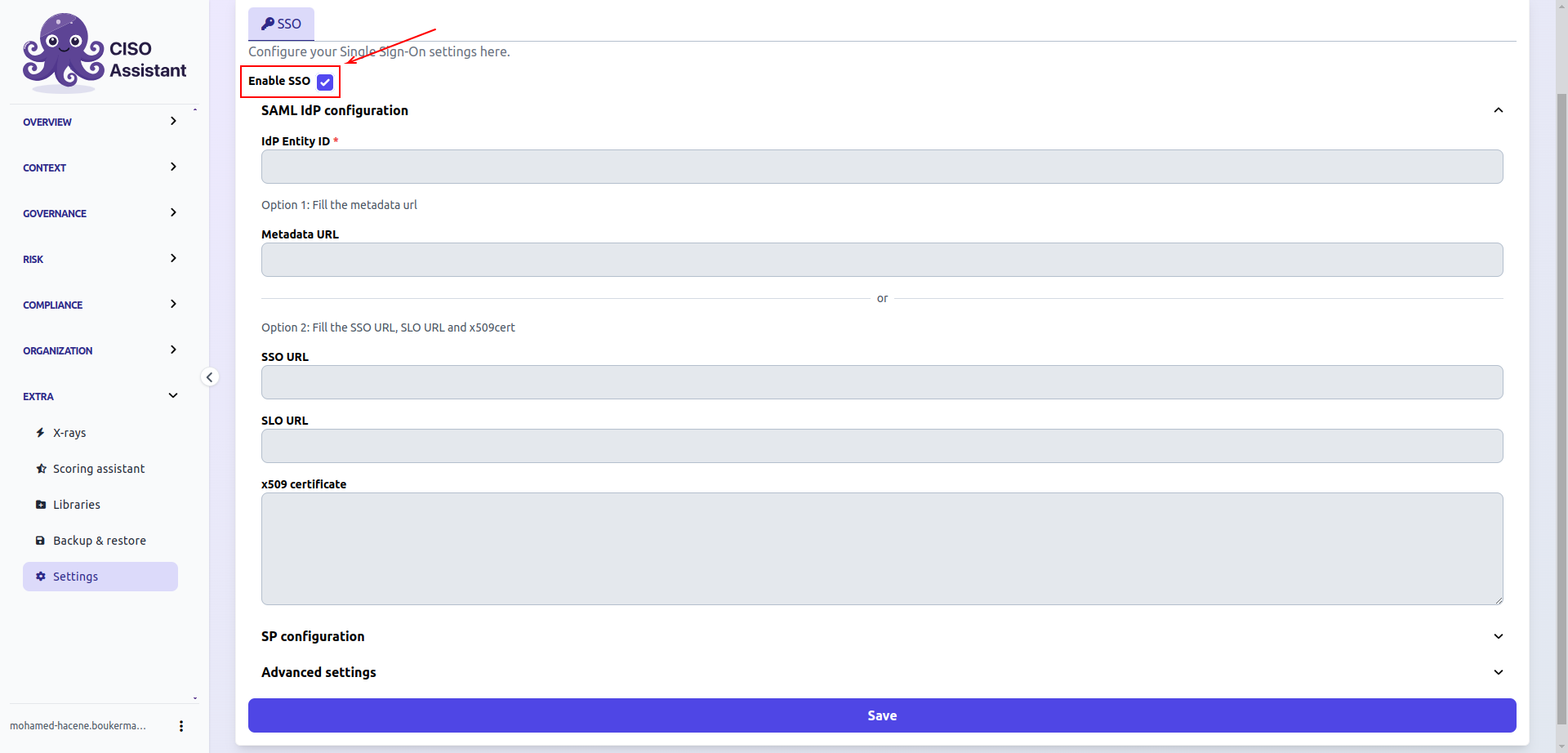
.png?alt=media)
.png?alt=media)