> For the complete documentation index, see [llms.txt](https://intuitem.gitbook.io/ciso-assistant/llms.txt). Markdown versions of documentation pages are available by appending `.md` to page URLs; this page is available as [Markdown](https://intuitem.gitbook.io/ciso-assistant/configuration/settings/infra-config-allowed-ip.md).
# Allowed IP whitelist
Control which IP addresses and CIDR ranges are allowed to reach the CISO Assistant backend. Administrators manage the allowlist from the settings UI, and the infrastructure layer picks it up automatic
## What it does
The **Allowed IPs** whitelist lets administrators decide which IP addresses and CIDR ranges are permitted to reach the backend API. It is the simplest way to restrict API access — for example, to let a CI runner, an office network, or a machine running the [MCP server](/ciso-assistant/ai-and-integrations/mcp.md) talk to your instance while keeping everyone else out.
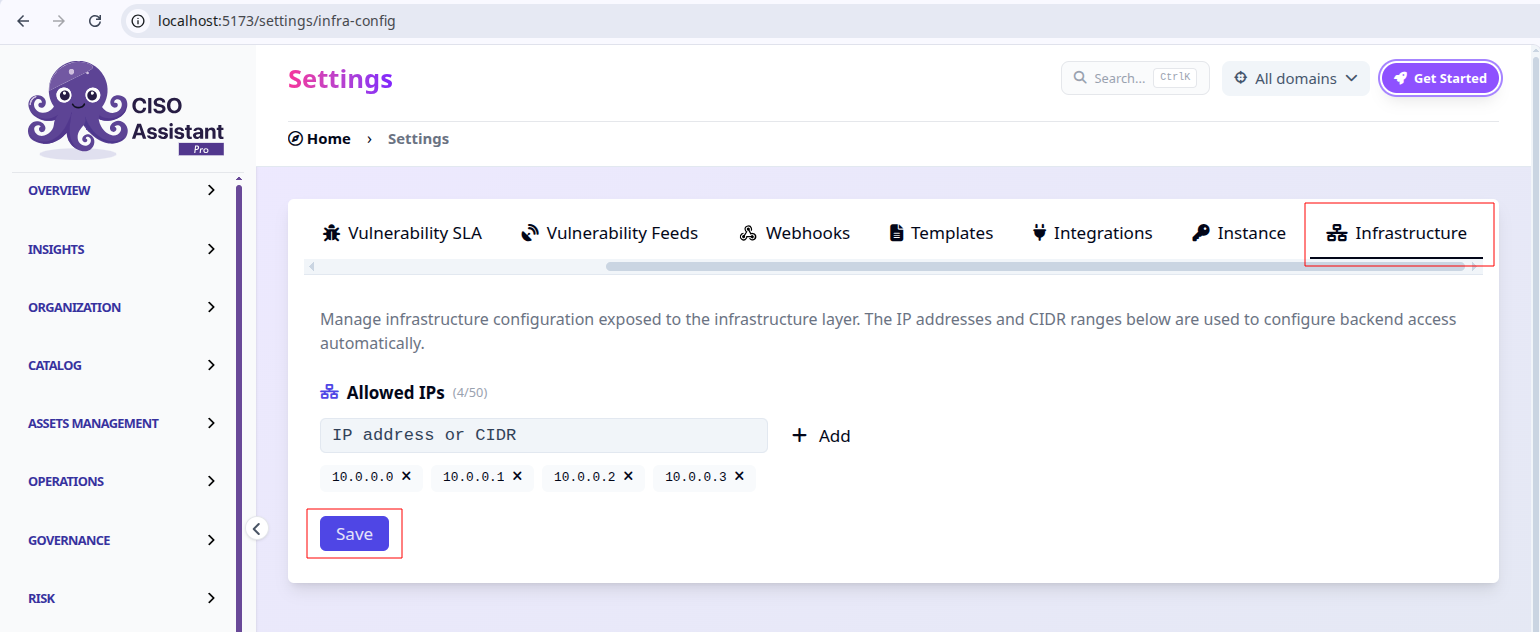
You manage the list from **Settings → Infrastructure**:
Settings → Infrastructure → Allowed IPs
* Type an **IP address** (e.g. `203.0.113.4`) or a **CIDR range** (e.g. `198.51.100.0/24`) and click **Add**.
* Remove an entry with the **✕** next to it.
* Click **Save** to apply your changes.
Both IPv4 and IPv6 are supported, up to 50 entries.
{% hint style="warning" %}
The list is a strict allowlist:
* **Empty list → no access.** Saving with no entries blocks **all** traffic to the backend. The UI asks you to confirm before you do this.
* **`0.0.0.0/0` or `::/0` → any IP.** These wildcard ranges open access to **everyone**, which defeats the purpose of the allowlist.
Make sure your own IP (and anything that needs API access) is in the list before you save.
{% endhint %}
{% hint style="info" %}
**On SaaS, changes take \~10 minutes to apply.** After you save, allow up to 10 minutes for the new rules to take effect — a background job reconciles the allowlist with the infrastructure on a 10-minute cycle. There's nothing to configure; just wait before testing. On-premises, propagation depends on how you wire enforcement (see **Availability** below).
{% endhint %}
## Availability
* **CISO Assistant SaaS** — already enabled. The **Infrastructure** tab is available to administrators out of the box; just manage your allowed IPs.
* **On-premises** — disabled by default. If you want this self-service allowlist, enable it by setting the following environment variable on the backend and restarting it:
```bash
ENABLE_INFRA_CONFIG_MANAGEMENT=True
```
When disabled, the **Infrastructure** tab is hidden and the API endpoint below is not registered.
{% hint style="warning" %}
**On-premises, you have to wire up enforcement yourself.** Enabling the flag only *exposes* the allowlist on `/infra-config/` — it does not filter traffic on its own (the automatic 10-minute reconciliation mentioned above is specific to CISO Assistant SaaS). You are responsible for consuming the endpoint and applying the rules in your own infrastructure.
In particular, `/infra-config/` is served at the URL **root**, not under `/api/`. The default Caddy configuration only reverse-proxies `/api/*` to the backend and everything else to the frontend, so the endpoint is **not reachable through Caddy until you add a route for it**. Edit your Caddy configuration to proxy it directly to the backend — for example:
```caddyfile
reverse_proxy /infra-config/* backend:8000
reverse_proxy /api/* backend:8000
reverse_proxy /* frontend:3000
```
Keep `/infra-config/` restricted to your trusted infrastructure (it is unauthenticated — see the warning below).
{% endhint %}
{% hint style="info" %}
If you rely on API access — for instance the [MCP integration](/ciso-assistant/ai-and-integrations/mcp.md) — IP filtering must be in place and your IPs added to the allowlist. SaaS administrators only need to add their IPs; on-premises administrators should enable the feature first.
{% endhint %}
## How the infrastructure layer consumes it
Once configured, the allowlist is published on an `/infra-config/` endpoint so your reverse proxy, firewall, or security group can read it and apply the rules automatically — instead of you editing infrastructure config by hand.
From a machine that can reach the backend (not from the public internet):
```bash
curl http://localhost:8000/infra-config/
```
```json
{
"allowed_ips": ["203.0.113.4", "198.51.100.0/24"]
}
```
{% hint style="danger" %}
The `/infra-config/` endpoint is **unauthenticated**, exactly like `/metrics`. Never expose it to the public internet — keep it reachable only from your infrastructure layer (restrict it to trusted networks or bind it to an internal interface).
{% endhint %}
If the endpoint returns a 404, make sure `ENABLE_INFRA_CONFIG_MANAGEMENT=True` is set and that the backend has been restarted.
---
# Agent Instructions
This documentation is published with GitBook. GitBook is the documentation platform designed so that both humans and AI agents can read, navigate, and reason over technical content effectively. Learn more at gitbook.com.
## Querying This Documentation
If you need additional information that is not directly available in this page, you can query the documentation dynamically by asking a question.
Perform an HTTP GET request on the current page URL with the `ask` query parameter, and the optional `goal` query parameter:
```
GET https://intuitem.gitbook.io/ciso-assistant/configuration/settings/infra-config-allowed-ip.md?ask=&goal=
```
`ask` is the immediate question: it should be specific, self-contained, and written in natural language.
`goal` is optional and describes the broader end goal you are ultimately trying to accomplish on behalf of the user. GitBook uses it to tailor the answer towards what is most useful for that goal.
The response will contain a direct answer to the question and relevant excerpts and sources from the documentation.
Use this mechanism when the answer is not explicitly present in the current page, you need clarification or additional context, or you want to retrieve related documentation sections.