> For the complete documentation index, see [llms.txt](https://intuitem.gitbook.io/ciso-assistant/llms.txt). Markdown versions of documentation pages are available by appending `.md` to page URLs; this page is available as [Markdown](https://intuitem.gitbook.io/ciso-assistant/configuration/mfa.md).
# Multi-Factor Authentication (MFA)
Multi-factor authentication adds an extra layer of security to your account. CISO Assistant supports both TOTP authenticator apps and WebAuthn security keys (FIDO2, hardware keys, fingerprint, passkey
CISO Assistant supports two second-factor methods, and both can be enrolled on the same account:
* **TOTP** — time-based one-time passwords generated by an authenticator app on your phone (Google Authenticator, Microsoft Authenticator, 1Password, Authy, Bitwarden, …).
* **Security keys (WebAuthn)** — hardware tokens (YubiKey, Titan, SoloKey, …), platform authenticators (fingerprint readers, Windows Hello, Touch ID, Face ID), and passkeys. Anything that speaks FIDO2 / WebAuthn works.
Recovery codes are always issued alongside the chosen method so you can regain access if you lose both your phone and your security key.
## Prerequisites
Pick at least one of the following:
* A smartphone with an authenticator app installed (for TOTP), **or**
* A WebAuthn-capable device — a hardware security key, or a platform authenticator like a fingerprint reader, Windows Hello, Touch ID, or a passkey-capable browser.
Plus, of course, access to your account settings on CISO Assistant.
## Enable TOTP (authenticator app)
1. Sign in to your account and navigate to **My profile**.
2. Select **Settings**.
3. Look for the Security section and click **Enable 2FA**.
4. Set up your authenticator app:
* Open the app on your smartphone.
* Scan the QR code displayed on screen.
* Alternatively, enter the provided secret code manually.
5. Enter the 6-digit verification code shown in your authenticator app.
6. Click **Enable 2FA** to complete the setup.
## Enable a security key (WebAuthn)
1. Sign in and navigate to **My profile → Settings**.
2. In the Security section, choose to enrol a security key.
3. When the browser prompts you, present the authenticator:
* **Hardware key** — insert it and tap when it blinks.
* **Platform authenticator** — confirm via fingerprint, face recognition, or device PIN.
* **Passkey** — pick the existing passkey from your password manager.
4. Give the credential a recognisable name (e.g. "YubiKey blue", "MacBook Touch ID") so you can identify it later if you enrol several.
You can enrol multiple credentials on the same account — common patterns are a hardware key as the primary and a phone/passkey as the backup, or one key kept at the office and another at home.
## Important: save your recovery codes
After enabling MFA, you'll receive a set of recovery codes. These codes are crucial for regaining access to your account if you:
* Lose your phone or security key
* Uninstall your authenticator app
* Cannot reach any of your enrolled second factors
{% hint style="warning" %}
**Security Warning**:
* Store your recovery codes in a secure location, separate from your password
* Each recovery code can only be used once
* Never share your recovery codes with anyone
* Consider storing a copy both digitally (in a password manager) and physically (printed in a secure location)
{% endhint %}
## Admin recovery: disabling another user's MFA
If a user has lost access to every enrolled second factor (phone wiped, hardware key lost) **and** has no recovery codes left, an administrator can disable their MFA from the user's edit page:
1. Sign in as an administrator and navigate to **Organization → Users**.
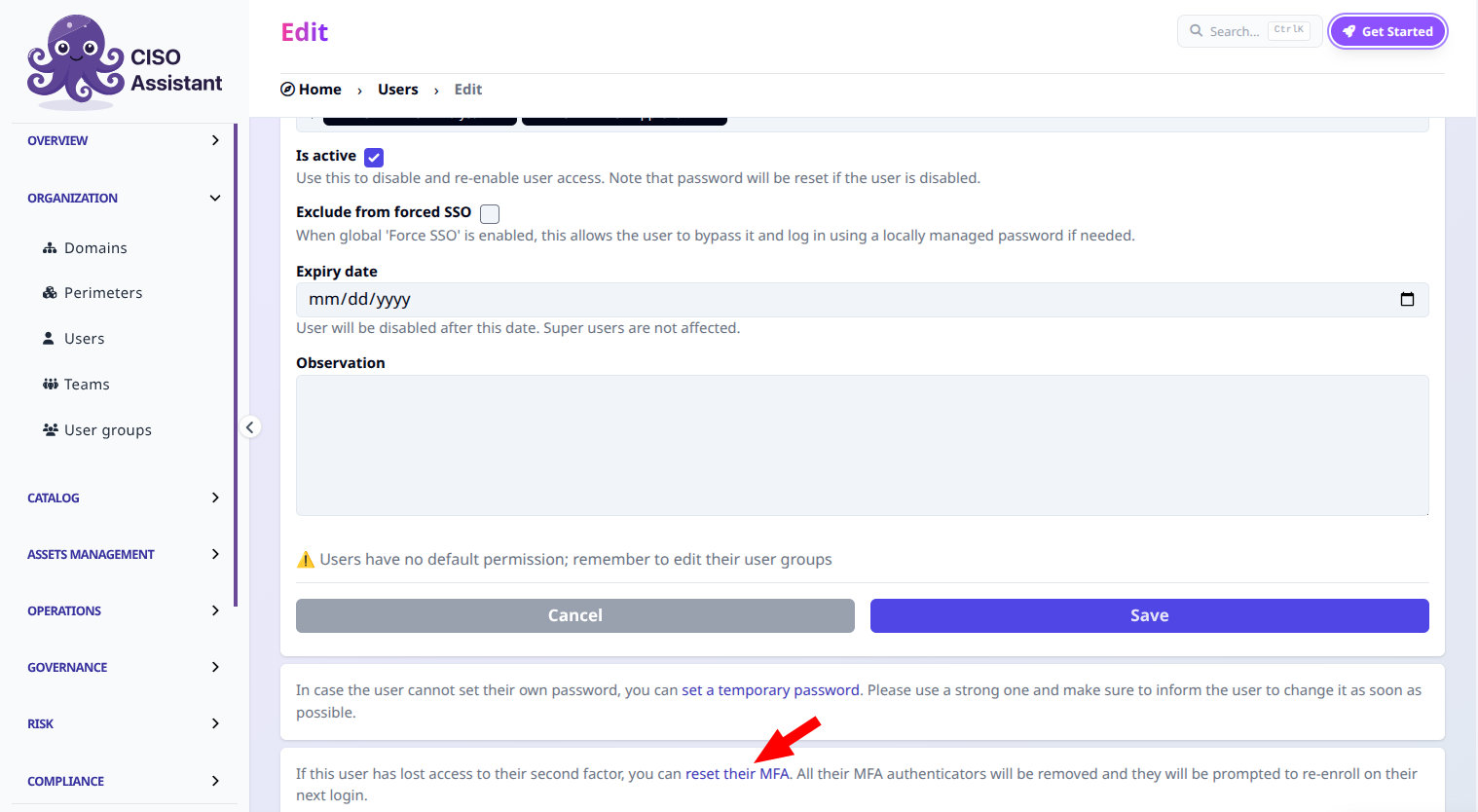
2. Open the affected user and click **Edit**. In the security section of the edit page, click **disable their MFA**.
The "Disable MFA" link on a user's edit page (visible only to admins, when the target user has MFA enabled).
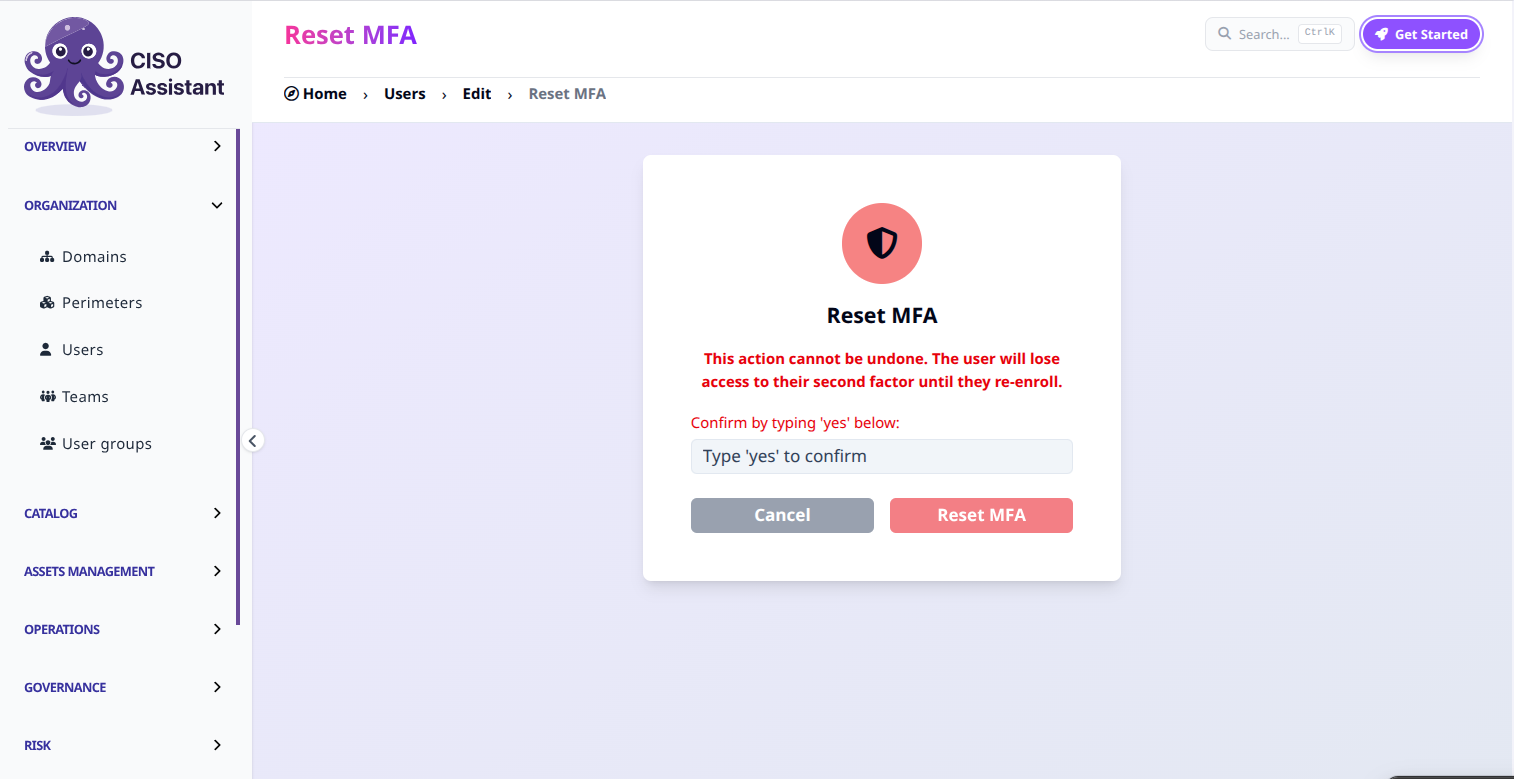
3. On the confirmation page, type the confirmation word shown on screen (the localized word for "yes") and submit.
The confirmation page requires typing the localized confirmation word shown on screen before MFA can be disabled.
All of the user's MFA authenticators (TOTP, WebAuthn credentials, recovery codes) are removed. The user will need to enable MFA again on their next login.
{% hint style="warning" %}
**Audit notes:**
* Every admin MFA disable is logged on the backend (admin id/email, target id/email, number of authenticators removed).
* The link is hidden on your own edit page — to disable your own MFA, use the standard MFA settings page on **My profile → Settings**.
* Only users in the built-in Global - administrator group can disable another user's MFA.
{% endhint %}
## Logging in with MFA
When MFA is enabled, the login flow asks for a second factor after the password. If you've enrolled both a security key and TOTP, the platform prefers the security key prompt by default and offers a "use authenticator app instead" link as a fallback. Either method completes the sign-in.
## Next steps
* Test your MFA setup by logging out and back in.
* If you enrolled a hardware key, **enrol a backup** (a second key, a passkey, or TOTP) — losing the only one is the most common lockout scenario.
* Reach out for support if you encounter any issues during setup.
## Enforce MFA for all users
Starting v3.13.0 you can enforce MFA for all users by enabling this flag. Users will see a persistent redirect to the MFA configuration page until enrolment is done. The feature doesn't interfere with SSO as long as the user doesn't have both a local account and an SSO one.
---
# Agent Instructions
This documentation is published with GitBook. GitBook is the documentation platform designed so that both humans and AI agents can read, navigate, and reason over technical content effectively. Learn more at gitbook.com.
## Querying This Documentation
If you need additional information that is not directly available in this page, you can query the documentation by asking a question.
Perform an HTTP GET request on the following URL with the `ask` and `goal` query parameters:
```
GET https://intuitem.gitbook.io/ciso-assistant/configuration/mfa.md?ask=&goal=
```
`ask` is the immediate question: it should be specific, self-contained, and written in natural language.
`goal` is what the user is ultimately trying to achieve, the reason they need the answer. Sharing it helps GitBook give you a better, more relevant answer. A goal is most helpful when it describes the outcome the user wants rather than restating the question. For example, with `ask=how do I create an API token`, a goal like `automate deployments from our CI pipeline` lets GitBook tailor the answer to that use case.
The response will contain a direct answer to the question and relevant excerpts and sources from the documentation.
Use this mechanism when the answer is not explicitly present in the current page, you need clarification or additional context, or you want to retrieve related documentation sections.
.png?alt=media)
.png?alt=media)
.png?alt=media)
.png?alt=media)